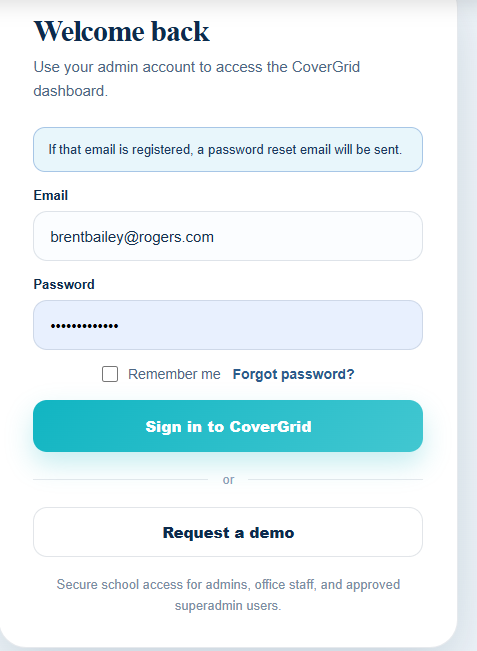
Login
Use your authorized CoverGrid™ school administrator or office staff login. Demo environments should use fictitious or sample school data only.
Add absences & review Daily Coverage
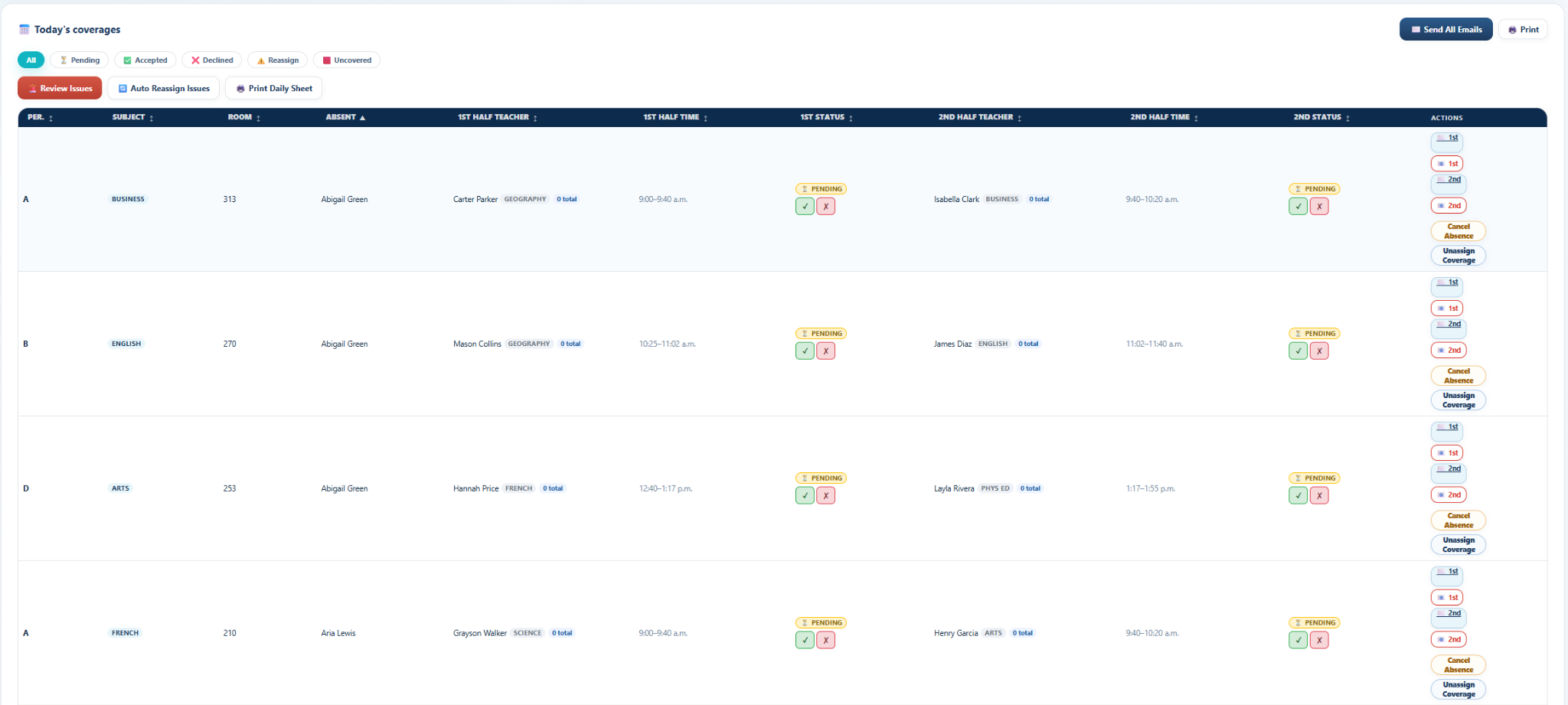
Start on Daily Coverage, review items needing attention, then add absences manually or import the school absence file.
Generate Coverage Plan
After absences are queued, use Generate Coverage Plan. CoverGrid™ checks availability, avoids absent staff, prevents double-booking, and balances coverage load.
Review, send, and print
Once coverage is generated, review assignments in Coverage Records, reassign if needed, send pending coverage emails, and print or download the daily operational output.
Generate Reports
Use report presets for common school-office tasks or the Generate Report wizard for custom reports.
Multi-school & administrator tools
Authorized multi-school administrators can use cross-school reporting, school switching, user access tools, and demo-environment management.
Common issues
Confirm that your account is assigned to the correct school. If the school is still missing, contact your CoverGrid administrator or support.
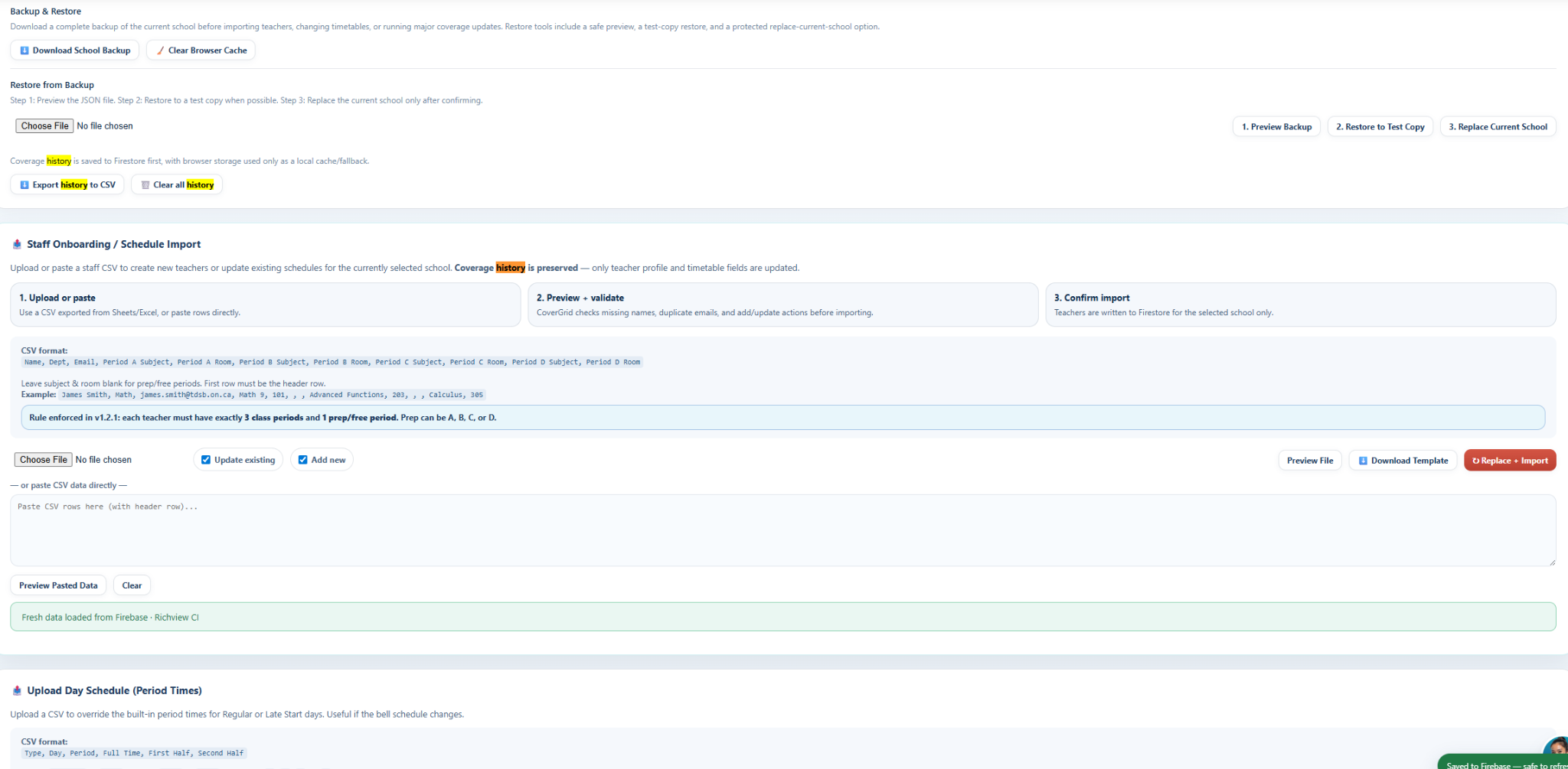
Go to School → Staff Roster and confirm roster data is loaded.
Check teacher schedules, free periods, absent staff conflicts, and same-day load limits.
Morning Workflow Checklist
Make sure Daily Coverage is showing the correct date and schedule type.
Create absences manually or import the school absence file.
Run Generate Coverage Plan after the absence queue is complete.
Use Coverage Records to resolve Needs Attention items before sending.
Send pending coverage emails.
Generate the Daily Operational Output for office records.